

Order Management
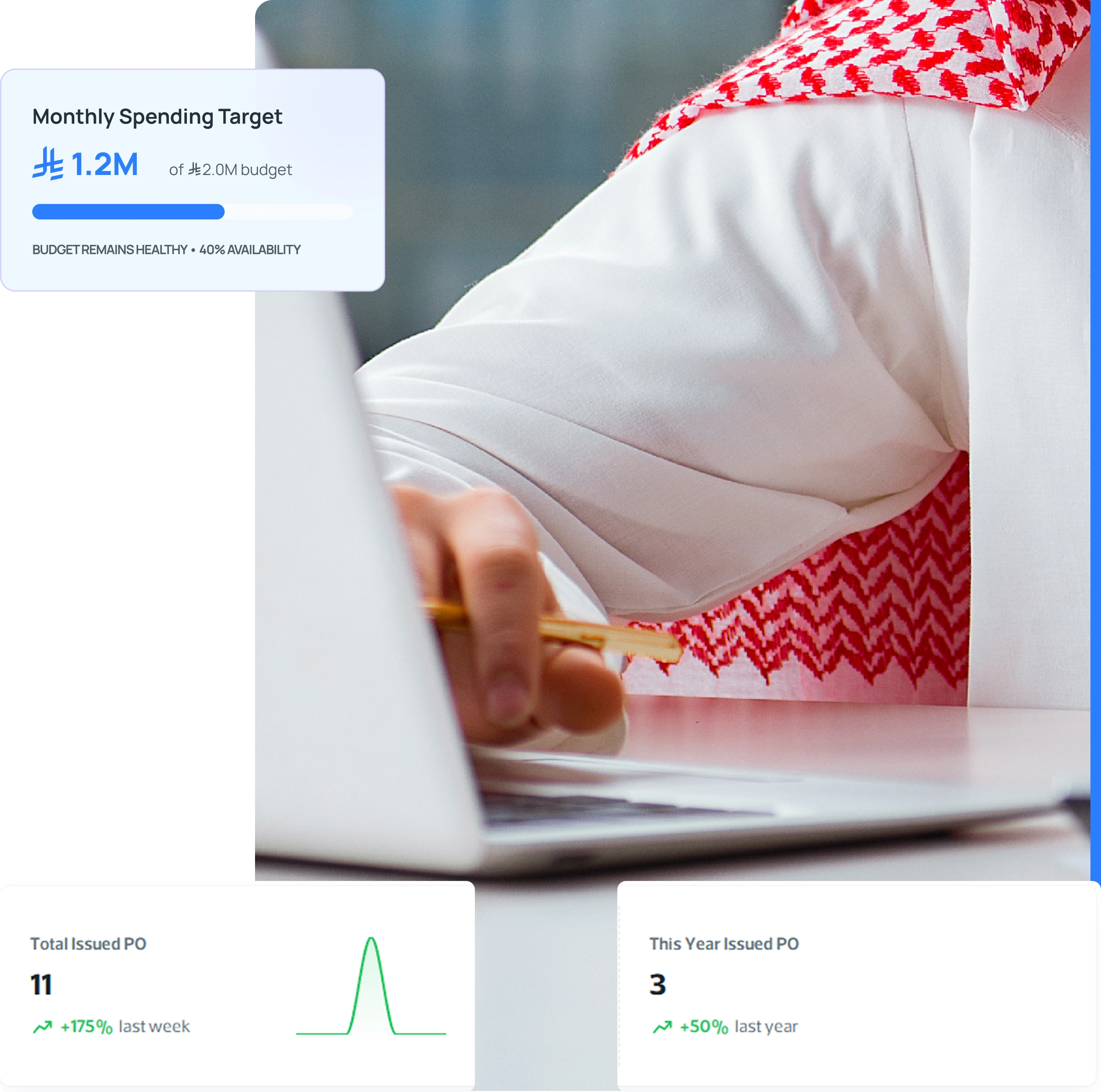
Order Management provides buyers with a centralized solution to create, manage, and track purchase orders and agreements. It streamlines procurement activities, strengthens supplier collaboration, and supports accurate audit compliance.
📝 How to Create a Purchase Order (PO)
- From the order listing page, click Create Order.
- Select Supplier Network (Corporate/Global) and target Supplier.
- Set Order Date & Delivery Date.
- Choose Purchase Category (Fixed Asset, Purchase Inventory) and Delivery Mode (EX-Work, DAP).
- Select target Warehouse Location.
- Enter Product Summary (Item title, QTY, Unit, Price/item, Discount, VAT % - Auto calculates total amount).
- Draft Order Note, choose Payment Mode (e.g., Advance payment), and attach supporting documents.
- Click Save Order to issue or Draft Order for later edits.
📋 Order Listings & Actions
Displays PO ID, PO Reference, Total Amount, Vendor Name, Delivery Date, Documents, and Status (Accepted, Invoiced). Actions include Order Details, Edit/Send Order, and Invoice Details.