

General Services
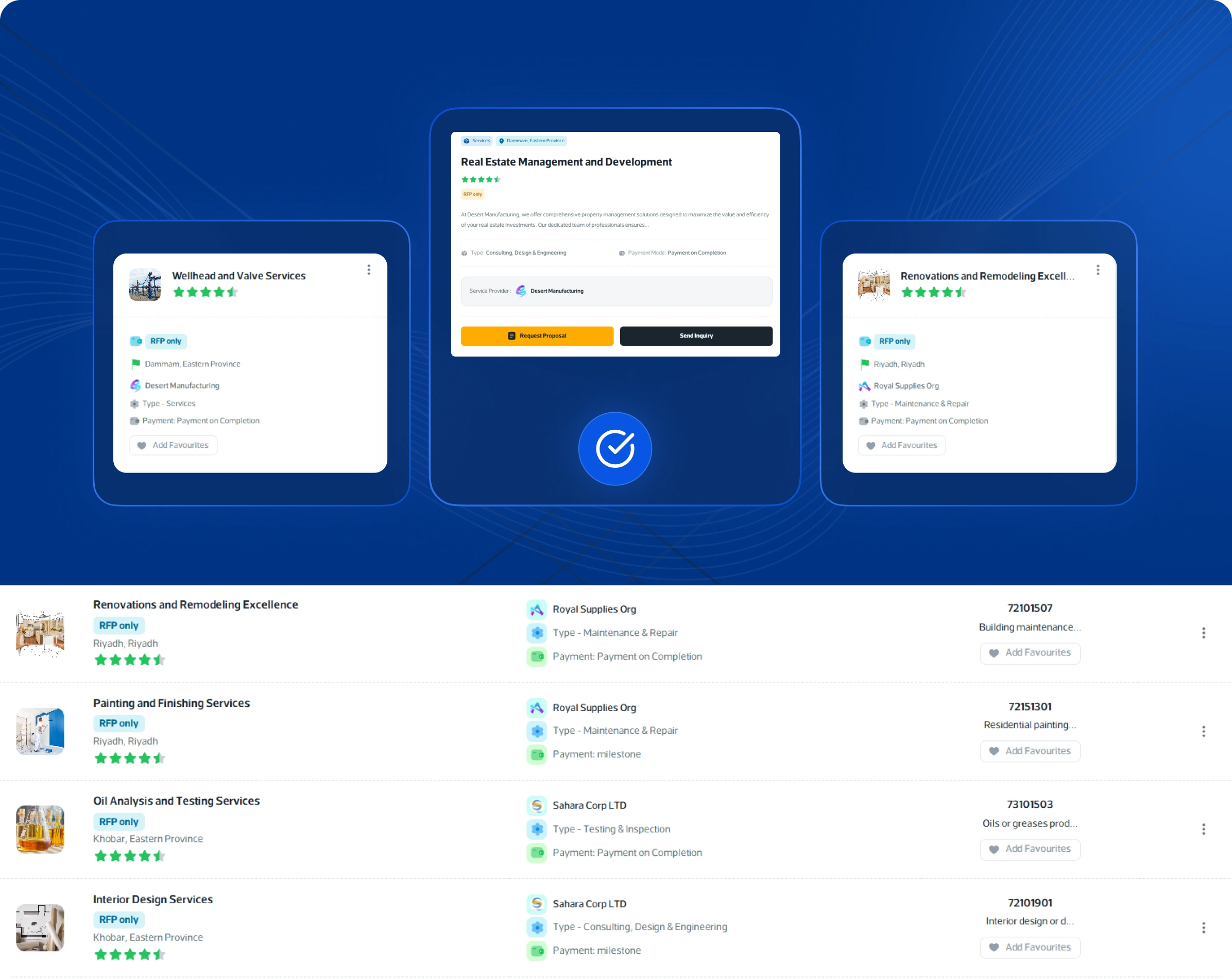
The General Services section on Jazalla showcases a wide range of services offered by companies across different industries. Each service listing includes a detailed description, defined scope of work, and user reviews to help buyers evaluate offerings with confidence. Users can easily search for specific services, explore provider profiles, and request quotations directly from the platform. Additionally, built-in communication tools enable seamless interaction with service providers, ensuring smooth coordination from inquiry to delivery.
✅ Steps to Access the General Services Section
- Log In: Sign in to your Jazalla account using your registered credentials.
- Navigate to Marketplace: Select Marketplace from the left sidebar menu.
- Select General Services: Click on General Services to view all available service listings.
📋 Exploring Services Listings
- Search Bar & UNSPSC: Search by keywords (e.g., Building construction service) and UNSPSC service code (e.g., 76111501 - Building cleaning services).
- Filters & Proximity: Filter by Show All, Favorites, Price, New/Old, A–Z/Z–A, and distance radius.
- Listing Card Details: Title, images, pricing/RFP, reviews, location, provider company name, service type, and payment terms.
- Action Buttons: View Details, Request for Proposal (RFP), Chat, and Add to Favorites.
📋 Services Details Overview
- Description & Scope: Purpose, detailed scope of work, application areas, and UNSPSC codes.
- Terms & Conditions: Pricing rules, delivery schedules, cancellation policies, and liability clauses.
- Documents & Reviews: Download service brochures, technical proposals, certificates, and check client ratings.
📝 Instructions for Uploading Services Catalogue
- Navigate to General Services > click Manage Catalogue > + Create.
- Fill in General Information: Service Title, Service Type (installation, consulting, maintenance), Service Description, Price & Price Unit (per hour, per project), Payment Terms, Terms & Conditions / Scope of Work.
- Set UNSPSC Classification and upload Service Images & Documents (PDF, Word, Excel).
- Click Publish to launch the service listing.
📝 How to Create Request for Proposal (RFP) & Workflow
- Initiate RFP: Click Request Proposal on any service listing to open the RFP Form.
- Complete RFP Form: Enter Scope Details, Service Start Date, Proposed Duration & Unit, Payment Mode, Service Type, Working Location, and Attachments. Click Save Request.
- Chat & Supplier Proposal: RFP is logged in Chat. Provider responds with an official proposal.
- Acceptance & Contract Conversion: Buyer reviews terms and clicks Accept Response, automatically converting the RFP into a binding Contract.
📝 Manage RFP History / Logs
Centralized logbook table showing RFP No, Issued By, Issued For, Contract No, Total Value, Start Date, and Actions. Sidebar actions allow opening chat thread history or accessing the finalized Contract document instantly.