

Online Store
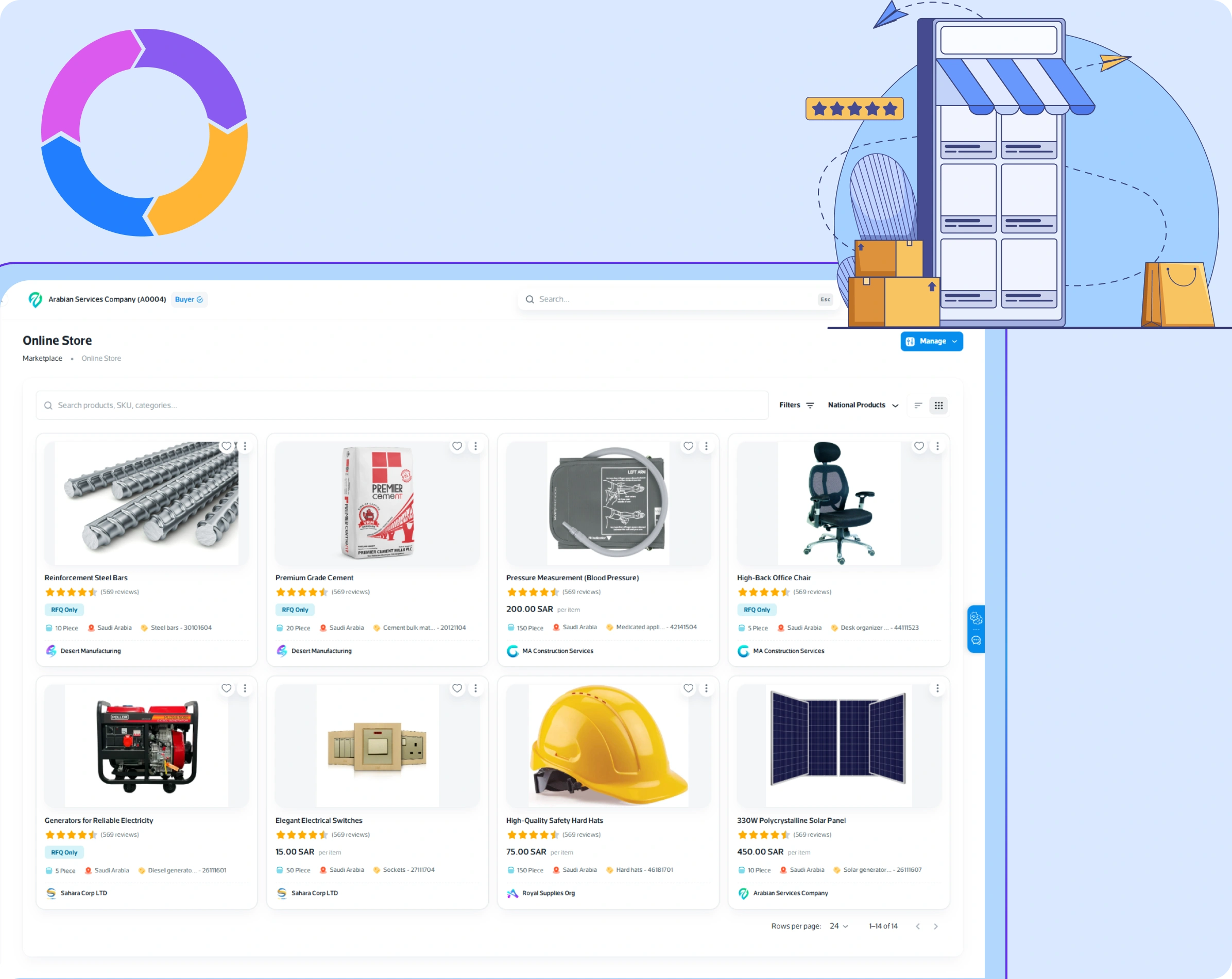
The Online Store serves as a digital marketplace where suppliers can showcase and sell their products to a global audience. It provides customers with access to a wide range of offerings, complete with detailed descriptions, specifications, and user reviews. Through this section, users can easily search for products, request quotations, and communicate directly with sellers, creating a seamless buying and selling experience.
✅ Steps to Access the Online Store Section
- Log In: Sign in to your Jazalla account using your registered credentials.
- Navigate to Marketplace: From the left-hand sidebar menu, select Marketplace.
- Select Online Store: Within the Marketplace, click on Online Store to view all product listings.
📋 Exploring Product Listings
- Search Bar: Search by keywords (e.g., solar panel, gate valve, cutting tools).
- Product Classification (UNSPSC): Refine search results by UNSPSC codes (e.g., 20141004 - Wellhead gate valves).
- Filter Options: Filter by Show All, Favorite List, National Product, Price (Low to High / High to Low), New / Old, A–Z / Z–A.
- Distance Radius: View products within your preferred geographical proximity.
- Listing Display & Details: Displays product name, image, price/RFQ, MOQ, review score, supplier name, manufacturer part number, HS code, and country of origin.
- Action Buttons: View Details, Request for Quote (RFQ), Chat, and Add to Favorites.
📋 Product Details Overview
- Description: Product features, intended applications, UNSPSC classification, and HS Code for international compliance.
- Specifications: Technical dimensions, material properties, and performance data.
- Warranty & Shipping: Coverage terms, return policies, refund conditions, and delivery timelines.
- Documents & Reviews: Download datasheets, manuals, and inspect customer ratings/feedback.
📝 Instructions for Uploading Product Catalogue
- Navigate to Online Store and click Manage Catalogue > + Create.
- Fill in General Information: Product Name, Model/SKU, Manufacturer Brand/Part No/Country, Unit, MOQ, Sale/Purchase Price, Payment Mode, VAT %, Price Visibility, Description, Specifications, Warranty, and Refund/Shipping Policies.
- Select Product Classification (UNSPSC) & HS Code reference.
- Configure Inventory Information: Select Warehouse and enter Available Quantity across locations.
- Upload Documents & Images: Attach catalogue images (.jpg, .png, .avif) and reference files (.pdf, .doc, .xlsx).
- Click Publish to launch the product listing live or save as draft.
📝 How to Create Request for Quotation (RFQ) & Workflow
- Initiating RFQ: Click Request Quote on any product listing to open the RFQ Form.
- Filling RFQ Details: Specify Quantity, Delivery Date, Purchase Category (Fixed Asset, Inventory), Delivery Mode (EX-Work, DAP), details, and attachments. Click Save Request.
- Chat Integration: RFQ is logged into Chat Module. The supplier receives instant notifications and responds with an official quotation.
- Review & Order Conversion: Buyer reviews pricing and clicks Accept Response to convert the RFQ into an active Order.
- Invoice & Payment: Supplier accepts order and issues an Invoice. Upon buyer approval, the invoice forwards to Accounting for payment settlement.
📝 Manage RFQ History / Logs
The RFQ History page acts as a centralized logbook displaying RFQ numbers, issuing parties, order numbers, invoice numbers, total amounts, and payment statuses. Interactive sidebar buttons enable opening chat history or initiating payment directly via Make Payment.